
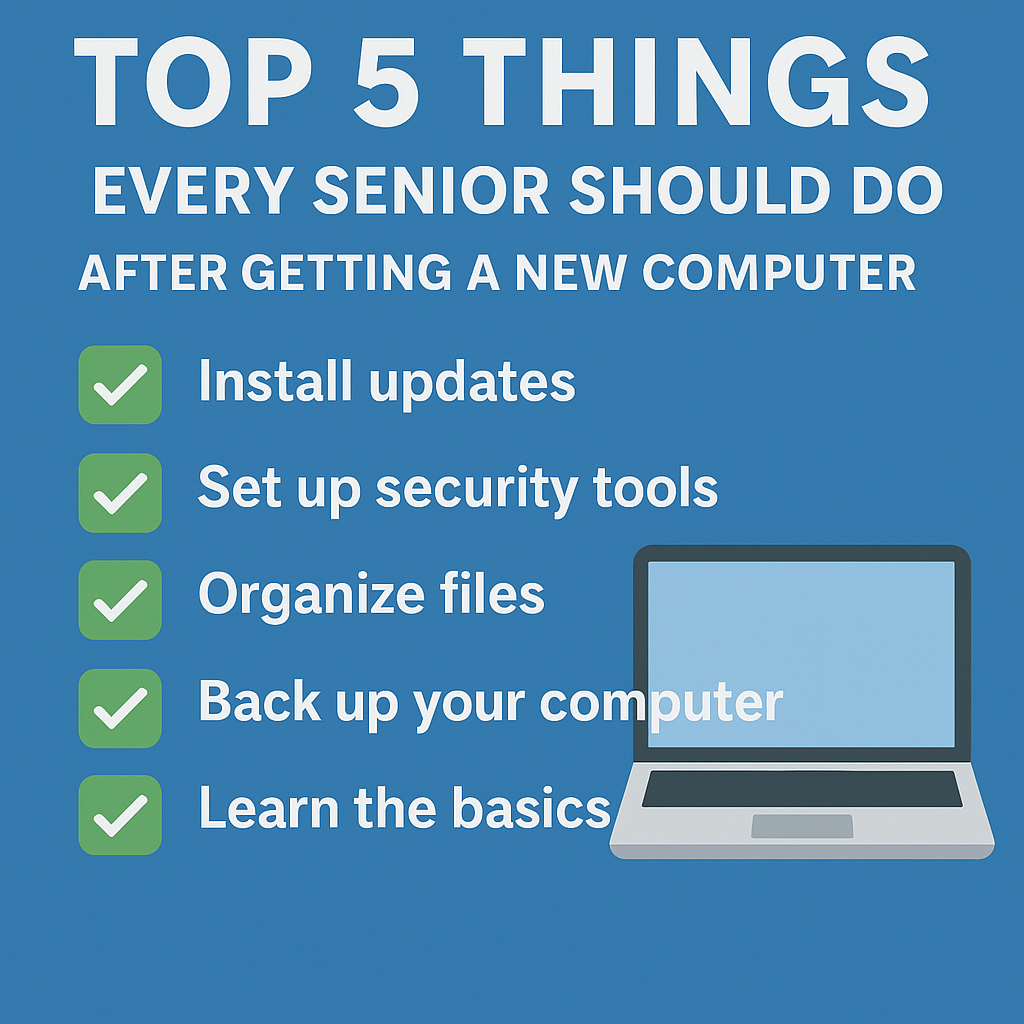
Top 5 Things Every Senior Should Do After Getting a New Computer
Top 5 Things Every Senior Should Do After Getting a New Computer
Getting a New Computer Should Feel Exciting, Not Overwhelming
When you get a brand new computer, it is supposed to feel exciting. The screen is bright, everything runs smoothly, and you finally feel like you can enjoy email, photos, video calling, and online browsing again.
But for many seniors, the excitement quickly turns into confusion. A new computer comes with new buttons, new menus, new updates, and sometimes new frustrations.
At Golden Age Tech Support, we sit beside seniors every week who say things like, “I love my new computer, but I have no idea what to do first,” or “I am so scared I will click the wrong thing and break something.”
The truth is, you cannot break your computer by trying to use it. But there are a few important steps that every senior should take right after getting a new computer. These steps help protect your device, organize your digital life, and make sure you feel confident from day one.
Setting up a new device does not have to feel overwhelming when you have patient computer help for seniors in Denver to guide you step by step.
This friendly guide walks you through the top five things you should do so your computer stays fast, secure, and easy to use for years to come.
1. Install All Important Updates Right Away
Why updates matter
New computers rarely come fully updated. They may sit in warehouses for months before being sold, and during that time, the system becomes outdated.
Ignoring updates can:
slow your computer
create security risks
prevent apps from working
cause pop ups and warnings
make the system unstable
The Cybersecurity and Infrastructure Security Agency, CISA recommends keeping devices fully updated to avoid viruses and performance problems.
How to update your new computer
On a Windows computer:
Click Start
Select Settings
Choose Windows Update
Click Check for Updates
Install everything listed
Your computer may restart several times. This is normal.
If your new computer is slow starting up, you may find our helpful article Tips to Speed Up Computer Boot Time.
2. Install Virus Protection and Scam Protection Tools
Why this is important for seniors
Scammers target seniors more than any other age group because they assume older adults are unfamiliar with modern technology. New computers are safer than old ones, but they still need extra protection.
Signs you may need security tools:
you see pop ups
you get fake warnings
emails look suspicious
your browser redirects unexpectedly
your computer feels slower than it should
Recommended protections:
Microsoft Defender antivirus
Built in firewall
Strong password for your Microsoft or Apple account
Multi factor authentication
Safe browsing settings
To learn how to avoid fake pop ups, please read our helpful guide:
👉 How to Spot a Fake Tech Support Call, And What to Do Next
The Federal Trade Commission, FTC offers excellent information on protecting yourself from tech support scams.
During an in home visit, we can install safe antivirus tools, block dangerous websites, and remove scam pop ups.
3. Organize Your Files, Photos, Email, and Apps From Day One
A new computer is a clean slate. This gives you the perfect chance to keep things organized from the start so you do not feel overwhelmed later on.
What you should organize
your desktop icons
your downloads folder
your documents
your photo library
your email inbox
your internet bookmarks
Why organizing early helps
If you do not start organized, clutter begins rapidly. Files stack up, photos duplicate, and the desktop becomes crowded. This makes your computer slower and your experience frustrating.
The AARP Technology Resource Center shares helpful guides for seniors to reduce digital clutter and stay organized.
You may find our article In Home Tech Support for Seniors, where we explain simple organization tips, helpful as you get started:
We can organize your photos, email, and documents during an in home lesson so everything feels clean and simple.
4. Back Up Your Computer to Protect Your Precious Memories
Why backups matter
New computers feel reliable, but accidents happen. Computers can still fail, and cyber threats can lock or erase your files.
Some seniors believe their photos are “safe” just because they are on the computer. But that is not true. A computer is only one copy, and memories are too important to lose.
How to back up your device
You have two safe backup options:
Cloud backup
OneDrive
iCloud
Google Drive
Physical backup
external hard drive
USB flash drive
The National Institute of Standards and Technology, NIST recommends using more than one backup method to keep files secure.
5. Learn the Basics With Simple, Patient Guidance
A new computer becomes much less stressful when someone friendly and patient shows you how it works. Many seniors tell us their biggest worry is, “What if I press the wrong thing?” or “What if I get lost and can’t get back?”
The truth is, you cannot break your computer by clicking normal buttons. You simply need confidence and a little hands on guidance.
Topics seniors should learn early
how to use the Start Menu
how to search for apps
how to adjust volume and brightness
how to find downloads
how to manage email
how to use video calling
how to change the text size
how to update your computer
how to stay safe online
Bonus Tip, Set Up Your Passwords the Right Way
Most seniors either reuse the same password everywhere or forget passwords easily. A new computer gives you a chance to start fresh.
Easy password tips:
use simple passphrases
write them down in a notebook
avoid reusing the same password
enable two step verification
FAQ for Seniors Getting a New Computer
1. Do I need antivirus on a brand new computer?
Yes. New computers still need protection to block scams, fake pop ups, and dangerous websites.
2. Should I move everything from my old computer to my new one?
Only move what you need. Starting clean helps keep your new computer organized and fast.
3. How do I know if my new computer is safe?
Install updates, set up antivirus, enable backups, and learn basic online safety tips.
4. Can Golden Age Tech Support help me set up my new computer?
Yes. We offer in home setup where we install updates, transfer files, organize your computer, and teach you step by step.
5. What if I press the wrong button?
Do not worry. You cannot break your computer through normal everyday clicking.
Conclusion: Your New Computer Should Feel Exciting, Not Stressful
Getting a new computer is a wonderful opportunity to stay connected, stay safe, and enjoy your digital life with confidence. The steps you take in the first few days can make the next several years smoother, faster, and easier.
And if you ever feel confused, lost, or worried, Golden Age Tech Support is here to help. We come to your home, sit beside you, and walk you through everything patiently, clearly, and kindly.
Call us today or schedule an in home visit. You deserve technology that feels simple, safe, and stress free.
